How to install KidSafe360
A simple, screen-by-screen walkthrough for parents. Follow the six steps below and you’ll be watching your child’s device from your own dashboard in no time.
- 1Create your free account→
- 2Download the app onto your child’s phone→
- 3Allow the install→
- 4Install and open the app→
- 5Grant the permissions→
- 6Watch
Create your account
Free forever · no card needed
The sign-up screen — done once, on your device.
Create your free account
Start on your own phone or computer. Sign up for a free KidSafe360 account — this is the parent dashboard where you’ll see everything. No credit card needed, and the free plan is free forever.
Use an email and password you’ll remember — you’ll sign in with the same details on your child’s phone in a later step.
Create your accountKidSafe360
Android app · v1.1
On the child’s phone, in the browser
Tap Download on the child’s phone to save the APK.
Download the app onto your child’s phone
Now pick up the Android phone you want to protect. Open its browser, go to kidsafe360.com, and tap Download. The app installs directly (it’s not on the Play Store), so it downloads as an .apk file — about 17 MB.
On the child’s phone, open kidsafe360.com and tap the button below (or use this one if you’re already on that phone):
App not recognised
Play Protect doesn’t recognise this app’s developer. Apps from unknown sources may be unsafe.
The Play Protect warning — tap “Install anyway.”
Allow the install
When you open the downloaded file, Android may warn that it doesn’t recognise the app, or show “Harmful app blocked”. This is normal — Google Play Protect flags every app installed from outside the Play Store, no matter what it does.
Tap More details → Install anyway. If you don’t see that option, turn off Play Protect scanning first — our short guide shows exactly how.
How to get past Play Protect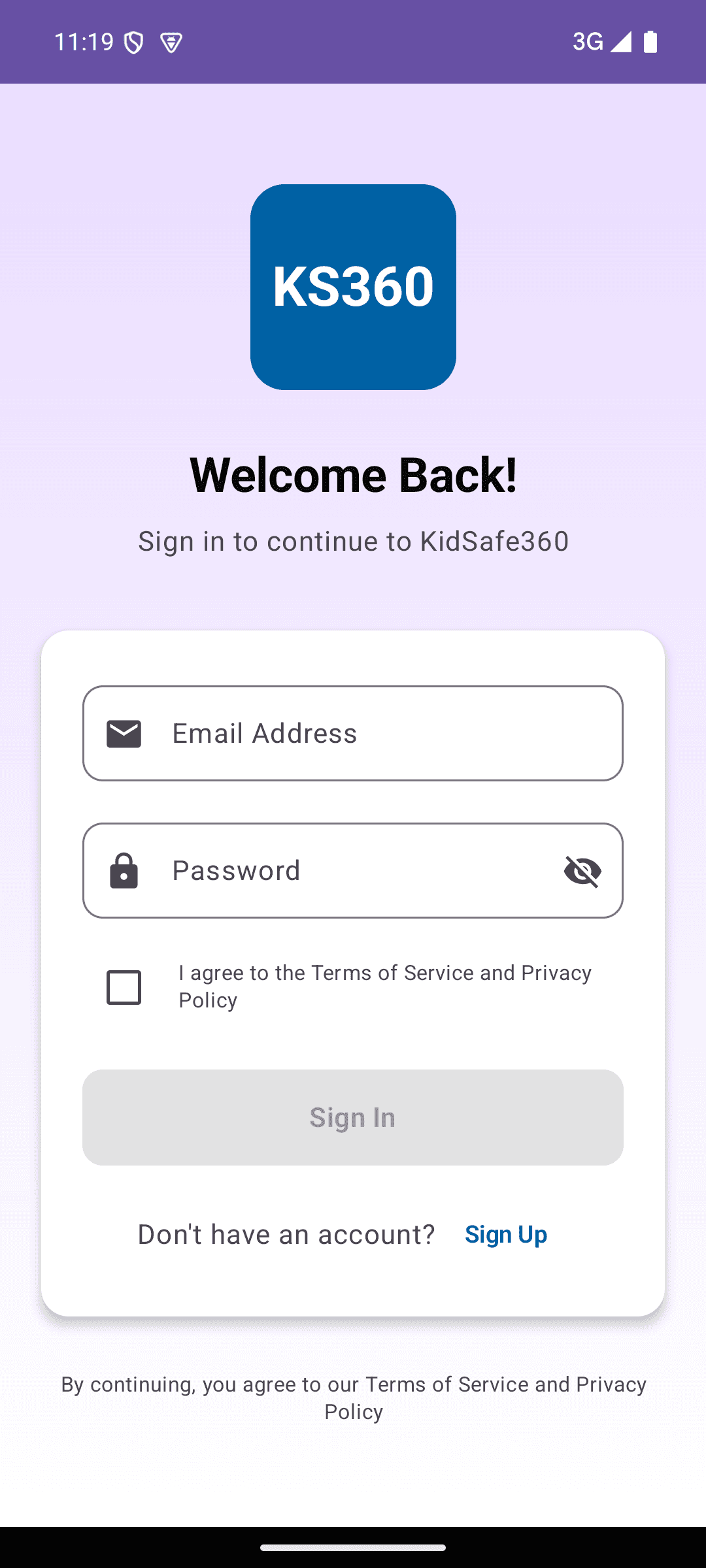
The real app sign-in screen — use your parent account.
Install and open the app
Tap Install, wait a few seconds, then tap Open. Sign in with the same account you created in step 1 — that links this phone to your dashboard.
Tip: have a quick, honest chat with your child about why the app is there. KidSafe360 is designed for transparent, consent-based family safety.
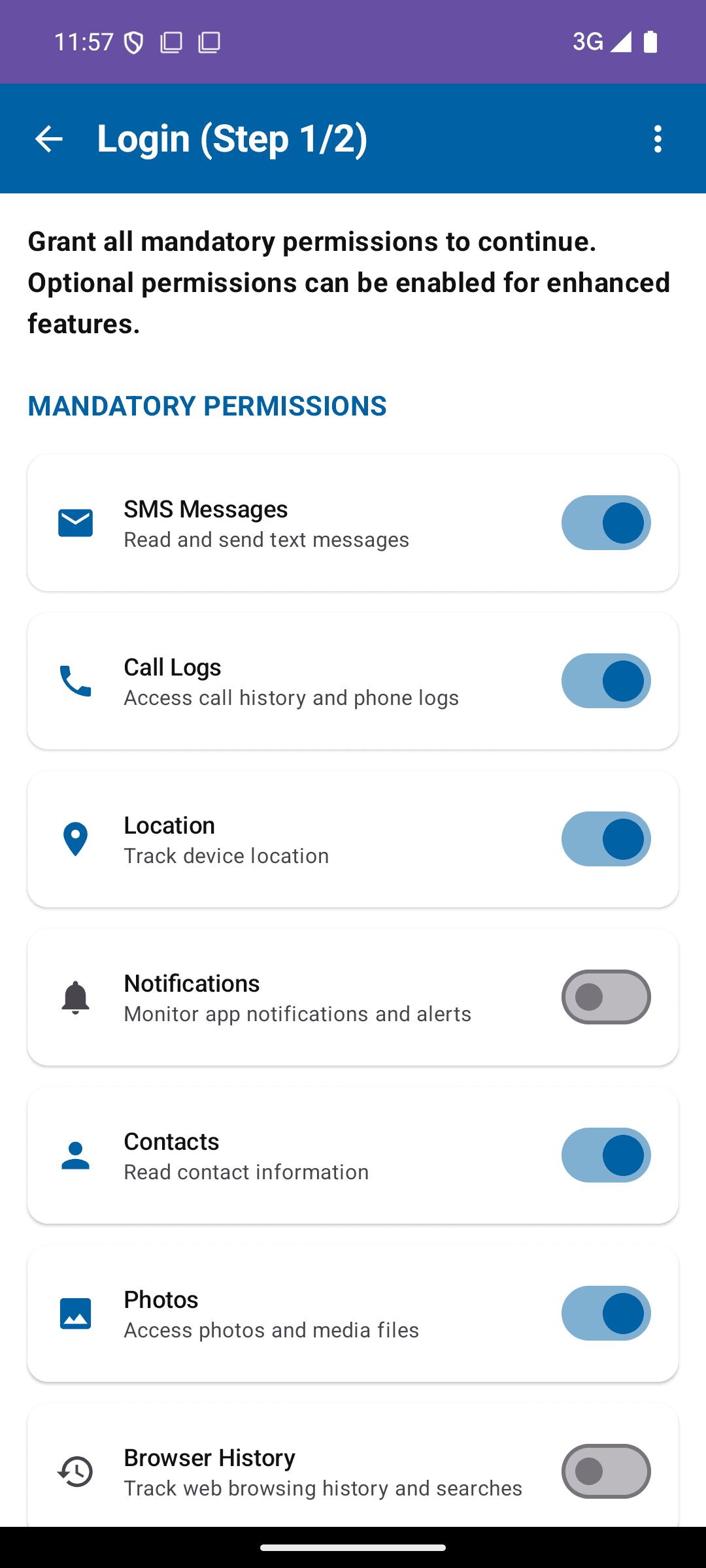
The real permissions wizard — turn each mandatory toggle on.
Grant the permissions
After you sign in, the app opens a permissions wizard. The Mandatory permissions at the top — SMS, call logs, location, notifications, contacts and photos — must all be switched on before you can continue. Tap each toggle and allow it when Android asks.
Below that are Optional permissions (accessibility, usage access, screen recording and so on) that unlock extra features like app-time limits and live viewing — turn on the ones you want. When the mandatory ones are all green, tap Next to finish setup.
Your dashboard — the child’s device online and reporting live status.
Watch the data arrive on your dashboard
That’s it — setup is done. Head back to your own device, open your dashboard, and within a short while you’ll see the child’s device come online and data start to appear: calls, messages, location, apps, and more.
On the free plan, data syncs every couple of hours and shows your most recent 20 records per type. Upgrade any time for real-time sync and full history.
Open your dashboardCommon questions
How long does the whole setup take?
About 10 minutes of hands-on time. Creating your account and downloading the app take a couple of minutes each; granting permissions is the longest part. After that, the first batch of data usually appears within an hour.
Do I need my child’s phone, or can I do it remotely?
You need the child’s Android phone in hand for the install and permission steps — Android requires the permissions to be granted on the device itself. Only the first step (creating your account) can be done from your own device.
Why does Android warn me about the app during install?
Because KidSafe360 installs directly from an APK rather than the Google Play Store, Google Play Protect shows an “unrecognized app” or “Harmful app blocked” warning. This is standard for every sideloaded app and does not mean anything is wrong. Our Play Protect guide shows exactly how to get past it.
Does it work on iPhone?
KidSafe360’s full monitoring app is for Android devices. iPhone support is limited by Apple’s restrictions on this kind of app.
Is it legal to monitor my child’s phone?
Yes, when you own the device or have legal authority over a minor child. We recommend being open with your child about the app. Monitoring a device you don’t own or an adult without consent is not a supported or lawful use.
Ready to set up KidSafe360?
Create your free account, then follow the steps above on your child’s phone. It only takes about ten minutes.